Answers to the most common questions about WPS Office; open a topic page for more depth.
How do you actually use WPS? What if you have no idea how to operate it the first time you open it?
Do not worry, the WPS interface looks a lot like Word, Excel, and PowerPoint, so it is quick to pick up. After your first open, create or open a file and the ribbon at the top holds the everyday tools (font, paragraph, insert, page, and so on). It helps to make a small item in each of the free Writer, Spreadsheet, and Presentation to learn where things are. There is also an official WPS Academy learning page for reference. Most features you have used in Office have a matching button in WPS.
Is there beginner training for WPS Office? I want to learn the basics from scratch
Yes. The official WPS Academy learning pages cover everything from signing in and cloud sync to each feature with illustrated, step-by-step guides, making it the most authoritative starting point. A suggested order: install the international version and sign in first, then work through the basics of the four core modules, Writer, Spreadsheet, Presentation, and PDF. Because the interface is close to Microsoft Office, anyone who uses Word or Excel can usually get up to speed fast.
What can the free version of WPS do, and which features require a paid membership?
The free version (WPS Standard) lets you open, edit, and save Word, Excel, and PowerPoint files, includes basic PDF reading and annotation and basic PDF-to-Office conversion, runs across Windows, Mac, Linux, Android, and iOS, and comes with 1GB of cloud storage, which is plenty for students and general home use. Paid plans (Pro / Premium) add ad removal, advanced PDF tools (PDF to Word, batch conversion, OCR, merge and split), premium templates, larger cloud storage, and AI features with usage credits.
WPS Spreadsheet tutorial: how do you use common functions like SUM, VLOOKUP, and IF?
Functions in WPS Spreadsheet work the same as in Excel, so you can apply your existing knowledge directly. SUM to add: =SUM(A1:A10); IF to test: =IF(condition,value_if_true,value_if_false), for example =IF(B2>=60,"Pass","Fail"); VLOOKUP to look up: =VLOOKUP(lookup_value,table_range,column_number,FALSE), where the final FALSE means an exact match. Type "=" in a cell and then the function name, and WPS automatically prompts the arguments. These basic functions are available in the free version.
How do you use WPS AI features, and where do you launch the AI assistant after getting a membership?
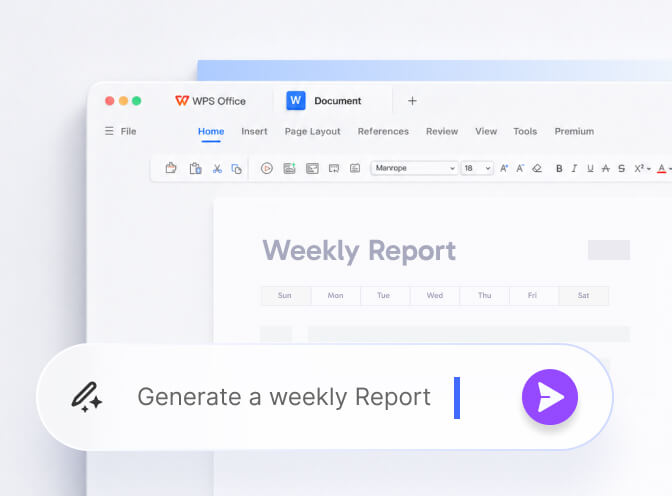
WPS AI features are a paid item that requires a membership plan with AI credits (such as Pro+AI / Premium). Once activated, the AI assistant is usually built into the ribbon or a sidebar in the editing interface, offering spell check, translation, summarizing, content generation, PDF chat, and more, with a daily usage allowance. The exact entry point varies by version, so look in the toolbar or for an AI-related button in the latest release. The free version does not include these AI capabilities.
Are WPS AI features free, or do you have to buy an AI membership separately? Can it be used in Taiwan?
WPS AI is a paid feature that requires a membership with AI credits (the international version offers an AI plan at about US$9.99 per month, or a combined Pro+AI plan), and the free version does not include it. The international version AI (translation, summarizing, generation, PDF chat, and so on) is tied to a daily allowance. Whether it is fully available in Taiwan and how well each language is supported is not stated clearly in the source material, so rely on the features actually visible after signing in to the latest version (this needs hands-on confirmation).
Does WPS AI work normally in Hong Kong and Taiwan, or is it restricted or does it need a VPN?
WPS itself can be downloaded and used normally in Hong Kong and Taiwan, and the international version is recommended (clean, without the mainland version ads and store). AI features are a paid membership item that requires a plan with AI credits. As for whether the AI is entirely free of regional limits in Hong Kong and Taiwan and whether any extra network conditions are needed, the available material does not give an official, clear statement (this needs hands-on confirmation). The safe approach is to sign in with an international account, activate an AI plan, and test it; using WPS in Hong Kong and Taiwan generally does not require a VPN.
WPS document layout tutorial: how do you set line spacing and paragraph spacing to make a file look good?
In WPS Writer, select the paragraphs you want to adjust, go to the Home / Paragraph group, click the small arrow for paragraph settings to open the Paragraph dialog, and set line spacing (single, 1.5, fixed value, and so on) along with spacing before and after paragraphs. To make a file feel open and look good, a common approach is 1.5 line spacing with 6 to 10 points of spacing after each paragraph. The operation logic is nearly identical to Word, so anyone who lays out documents in Word can jump right in.
How do you share WPS cloud files with colleagues? If you create a link, can people without WPS installed still view it?
After signing in to your WPS account, files can be saved to the WPS cloud and shared with colleagues through Share / Create Link. Generally, opening the link in a browser lets the other person view it online without installing WPS first. Note that sharing, multi-person collaboration, and cloud sync require signing in, and the free version cloud is only 1GB. Permissions (view or edit) and whether the link requires sign-in depend on your settings, so confirm the permission settings before sharing.
How do you add a watermark in WPS? I want to print Confidential or the company name on a quotation
Open the file in WPS Writer, find Watermark in the Insert or Page group, choose a text watermark, enter Confidential or the company name, then adjust the font, size, color, and tilt angle and apply it, and the whole file gets the watermark. Spreadsheets and presentations have similar settings. To keep it after exporting to PDF, add the watermark to the file first and then export to PDF.
How do you set up printing in WPS? I want a table to fit exactly on one A4 page without being cut off
In WPS Spreadsheet, go to Page Layout, set the paper to A4, then use Print Preview to check the page breaks. To fit on one page, use Scaling / Fit to 1 page wide by 1 page tall (the scale shrinks automatically to one page), or adjust column widths and margins or switch to landscape printing. In preview, the blue dashed line is the page break line, and keeping content within the dashed lines avoids cutoffs. Confirm everything looks right before printing.
Where do you find WPS template downloads? I want free resume and report templates
WPS includes an online template library, and when creating a file you can browse categories such as resumes and reports from the template center. Note that some polished templates are paid (premium templates are locked behind membership), but there are also plenty of free templates available, so just pick the ones marked free. Using online templates usually requires signing in. For more free options, you can also apply a free template in a file and then modify it into your own version.
How do you turn on collaborative editing in WPS? I want several people to edit the same spreadsheet at once
Multi-person collaboration requires signing in to your WPS account first, saving the spreadsheet to the WPS cloud, then using Share to create a collaboration link, setting others to the Can Edit permission, and sending it to colleagues so several people can edit online at the same time. Note that the free version cloud is only 1GB, and collaboration, multi-person editing, and version history are cloud features that require sign-in; for teams with heavy usage, consider upgrading to a membership for more space and collaboration benefits.
WPS presentation tutorial: how do you build a well-designed slide deck from scratch?
When creating a deck in WPS Presentation, start by picking a layout from the template center (both free and paid templates exist), apply it, and then replace the text and images to quickly produce a polished result. Key tips: one main point per slide, use the built-in layouts and master slide to keep the style consistent, and limit the palette to no more than three main colors. The operation logic is close to PowerPoint, and when done you can save as .pptx or export to PDF to share. Basic creation works in the free version.
How do you convert a PDF to Word in WPS and keep the layout from shifting?
Use the WPS PDF to Word feature (a Pro / Premium paid feature; the free version locks it or adds a watermark). To preserve the layout as much as possible: if the original PDF was generated from text layout (not a scan), the conversion turns out better; scanned files rely on OCR and the layout shifts more easily. After converting, you usually still need to manually fine-tune tables, columns, and fonts, which is a common issue with PDF conversion. For demanding layouts, proofreading page by page after conversion is the safest bet.
Is WPS very different from Microsoft Office to use? I am used to Word, will switching be hard to pick up?
It is not hard. WPS Office is positioned as a free alternative to Microsoft Office, with Writer, Spreadsheet, and Presentation corresponding to Word, Excel, and PPT. The interface and feature layout are highly similar, and common operations for font, paragraph, formulas, and insert work almost identically, so people used to Word are usually productive the same day. Files are also highly compatible with .docx, .xlsx, and .pptx and can be opened and exchanged directly, with differences mainly in the slightly different placement of a few advanced features.
Do WPS Writer, Spreadsheet, and Presentation correspond to Word, Excel, and PPT? How do you switch between them?
Yes. WPS Writer corresponds to Word, WPS Spreadsheet corresponds to Excel, and WPS Presentation corresponds to PowerPoint, and all three are included in the free WPS Office. When creating a file, click New on the home page to choose a document, spreadsheet, or presentation; different files open as tabs in the same WPS window, and you switch by clicking the tab at the top, and you can keep several files open at once.
In Hong Kong, doing monthly closing reports in WPS Spreadsheet, how do you quickly get started with formulas and functions?
WPS Spreadsheet is highly compatible with Excel functions, and common ones like SUM (total), AVERAGE (average), IF (conditional test), and VLOOKUP (lookup) are almost identical, so if you know Excel you can jump right in. For monthly closing, start by using SUM to total each account, IF to test whether targets are met, and then a pivot table to consolidate. WPS Academy (official) has extensive illustrated tutorials in Traditional Chinese you can reference as you work; after you type "=", WPS also prompts the function usage in real time.
A small or medium business in Taiwan wants the whole company to switch to WPS, how long do employees need to learn it?
Usually very quickly. WPS is a free alternative to Microsoft Office, and the interface is highly similar to Word, Excel, and PPT, so employees already familiar with Office are mostly comfortable within half a day to a day or two, keeping the learning cost low. For rollout, download everyone from this site, wpsofficepro.com, standardize the whole company on the same version and account system, and make good use of the official WPS Academy tutorials in Traditional Chinese. For team collaboration needs, you can evaluate the official WPS+ business plan.
How do you create a pivot table in WPS Spreadsheet? Can you walk through the steps?
First select the data range that includes the header row, go to the Insert tab at the top and click PivotTable, confirm the data range, then choose to place it on a new worksheet or an existing location. Next, in the field list on the right, drag fields into the Rows / Columns / Values areas: for example, drag Product to Rows and Amount to Values to summarize automatically. The Values area can be changed to sum, count, average, and other calculations. The operation in WPS is nearly the same as Excel, so if you know Excel you can apply it directly.
How do you freeze the top row and first column in WPS Spreadsheet so the headers do not move when scrolling?
On the View tab at the top of WPS Spreadsheet, find Freeze Panes. To fix the top row (the header row at the very top), choose Freeze Top Row; to fix the first column (the leftmost column), choose Freeze First Column; to fix up to a certain position at the same time, first click the cell below and to the right of the area you want to keep, then choose Freeze Panes / Freeze to Here, and the top and left headers will not move when scrolling. To undo, click Unfreeze Panes once more.
How do you make a drop-down menu in WPS Spreadsheet (data validation) so people can only select and cannot type freely?
To make a drop-down menu in WPS Spreadsheet, first select the cell range where you want the menu, go to the Data tab and click Validity / Data Validation, set Allow to List, and in the Source box enter the options separated by half-width commas (such as Yes,No,Pending), or select a range of cells that already lists the options. Once confirmed, those cells show a drop-down arrow and you can only choose from the list; typing freely is blocked and a prompt appears.